Great stories have a personality. Consider telling a great story that provides personality. Writing a story with personality for potential clients will assist with making a relationship connection. This shows up in small quirks like word choices or phrases. Write from your point of view, not from someone else's experience.
Odoo Process Set Logs: Complete Guide to Monitoring, Troubleshooting and Process Management
A failed order process does not always mean the entire integration has stopped working. Sometimes, a single failed task or an unresolved dependency is preventing the workflow from moving forward. The key is knowing where to look before taking action.
When your business relies on automated order management, marketplace integrations or connected ERP workflows, maintaining visibility over background processes is essential.
Understanding Odoo Process Set Logs helps administrators, support teams and integration specialists identify failed operations, monitor progress and investigate processing issues without making unnecessary changes.
However, one wrong action can complicate troubleshooting, particularly when a process is still running or waiting for another operation to finish.
In this guide, MoonSun explains how to monitor logs, investigate failed and in-progress Process Sets, understand individual process states and manage order processing workflows safely.
Whether you are troubleshooting an integration issue or reviewing automated order processing, following a structured approach can help you identify problems more accurately and reduce avoidable operational disruptions.
What Are Odoo Process Set Logs?
Odoo Process Set Logs provide visibility into order-related activities and the execution status of connected workflows in implementations that use Process Set functionality.
A Process Set represents a collection of related processes associated with an operation, such as processing an order or completing a multi-stage integration workflow.
Instead of checking each individual operation immediately, users can review the overall Process Set to understand its current state and progress.
The Log section serves as a starting point for investigating what has happened to a particular order.
It helps users determine:
- Whether an order-related operation has been executed.
- Whether the associated Process Set is still in progress.
- Whether an operation has encountered a failure.
- Which processes require further investigation.
- Whether an action should be considered after reviewing the current state.
For businesses managing multiple connected systems, this visibility is particularly important.
The most important rule of Process Set management is simple: investigate first, act second.
The terminology and screens described in this guide relate to a Process Set-based integration workflow. They should not be confused with the standard Odoo server log or scheduled-action interfaces.
Why Odoo Process Monitoring Matters for Business Operations
Automated business processes often involve multiple connected operations.
For example, an order received from an external marketplace might need to pass through several stages before its processing is complete.
Depending on the integration design, these stages could involve receiving order data, validating information, checking inventory or communicating with another system.
When these operations depend on one another, an issue in a single process can affect the progress of the overall workflow.
Without appropriate Odoo log monitoring, users may struggle to identify whether an order is:
- Waiting for processing.
- Currently being processed.
- Blocked by a dependency.
- Affected by an execution error.
- Ready for further investigation.
Understanding these differences helps businesses avoid unnecessary interventions.
For Australian retailers, wholesalers and eCommerce businesses using connected Odoo solutions, accurate monitoring can support more reliable order management and more efficient troubleshooting.
How to Check Order Status in Odoo Process Set Logs
The first step in investigating an order processing issue is to review its Log record.
The Log section displays information relating to orders and their associated processes.
Before attempting to resolve a suspected problem, users should carefully examine the available information and identify the current execution status.
Step 1: Locate the Relevant Order Log
Open the Log section and find the record associated with the order you want to investigate.
Confirm that you are reviewing the correct order before proceeding.
The available information should help you understand whether its associated operation has been processed or requires further examination.
Step 2: Determine Whether the Operation Has Started
If the Log indicates that an operation has not yet been executed, do not immediately attempt to trigger an Action.
First, determine whether an associated Process Set exists and whether processing is expected to begin through another part of the workflow.
An operation that has not started is not necessarily a failed operation.
It may be waiting for an earlier step, a required condition or another system event.
Step 3: Review the Process Set Status
Once the relevant information has been identified, examine the current Process Set state.
Two particularly important statuses are Fail and In Progress.
These states require different interpretations, but both should be investigated before making changes.
Understanding Fail and In Progress in Odoo Process Sets
Recognising the difference between failed and ongoing workflows is essential for accurate Odoo process troubleshooting.
Fail Status (Red): When a Process Encounters an Error
A Process Set displayed in red with the status Fail indicates that an error has occurred during execution.
This does not automatically identify which individual process caused the problem.
It tells you that further investigation is necessary.
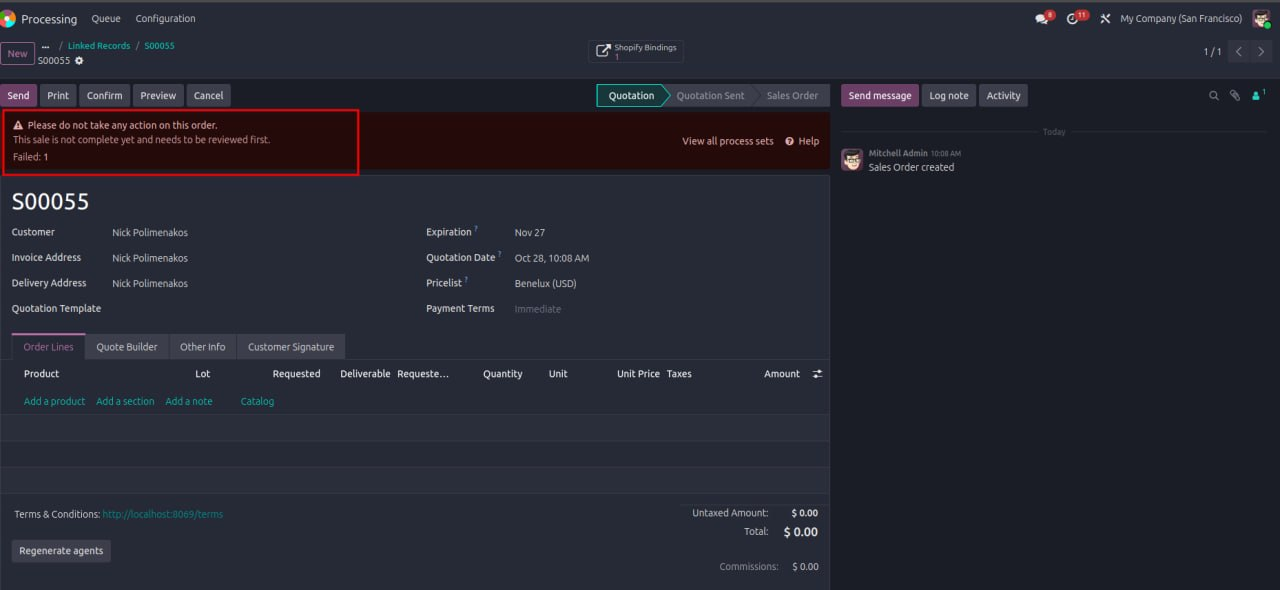
When a Process Set shows Fail:
- Identify the relevant order Log.
- Open the associated Process Set.
- Review its overall State and Progress.
- Open the Processes list.
- Locate individual processes showing a failure.
- Examine the relevant process information before deciding on corrective action.
Avoid immediately restarting or repeating the operation.
Depending on the workflow, executing an Action without identifying the cause may repeat the same error or introduce unintended results.
A failed Process Set should be investigated before any recovery action is attempted.
In Progress Status (Yellow): When a Process Has Not Finished
A Process Set displayed in yellow with the status In Progress indicates that its execution has not yet reached a completed state.
This status may represent an operation that is currently running or remains under processing.
Importantly, In Progress does not automatically mean that a process is stuck.
The workflow may still be executing normally.
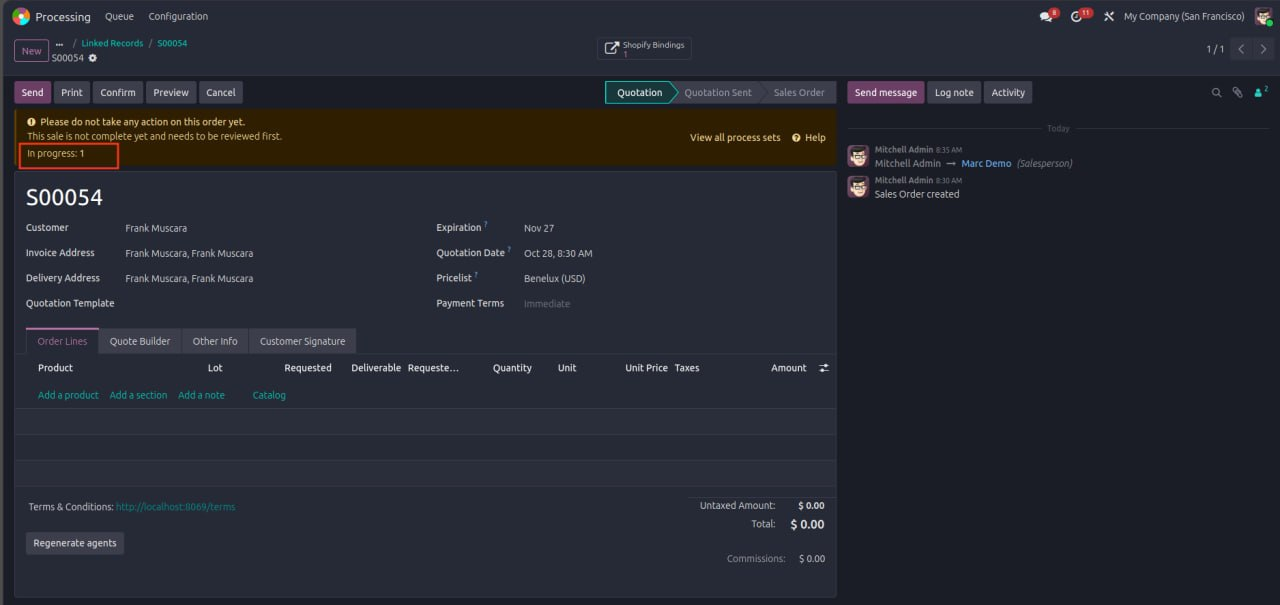
Before taking action:
- Review the order Log.
- Locate the corresponding Process Set.
- Check the current Progress value.
- Examine the State of its individual processes.
- Identify whether any process is waiting for another operation.
- Determine whether further investigation is necessary.
Do not manually execute an Action simply because a Process Set has not yet completed.
Premature intervention can interfere with the intended workflow.
Fail vs In Progress: What Is the Difference?
| Status | Indicator | Meaning | Recommended Approach |
| Fail | Red | The Process Set has encountered an execution error. | Investigate the failed processes and identify the cause before acting. |
| In Progress | Yellow | The Process Set has not yet completed execution. | Review progress and process states without prematurely triggering actions. |
Both statuses require attention, but neither should automatically result in manual intervention.
How to View All Process Sets in Odoo
When the Log indicates that an order requires further investigation, the next step is to examine its associated Process Set.
To access the available Process Sets, click View All Process Set.
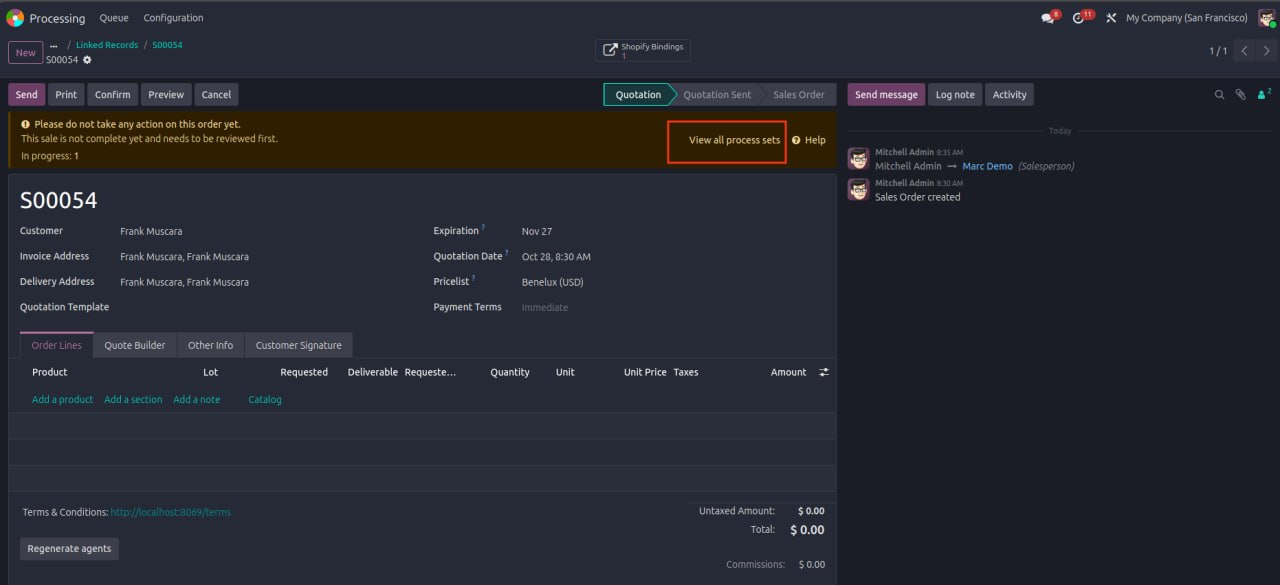
This option opens the list of Process Set records, allowing users to locate and inspect the relevant workflow.
Step-by-Step: Accessing Process Set Details
Step 1: Open the relevant Log record.
Step 2: Select View All Process Set.
Step 3: Find the Process Set associated with the order.
Step 4: Click the appropriate Process Set to open its details.
Step 5: Review the overall Progress and State.
Step 6: Determine whether further investigation of individual processes is required.
This approach allows users to evaluate the general condition of a workflow before examining its individual components.
Rather than opening every process immediately, start with the overall Process Set status.
This helps establish where the investigation should begin.
How to Check Process Set Progress and State
Once a Process Set has been selected, two important pieces of information become available:
- Progress
- State
Although these fields are related, they represent different aspects of workflow execution.
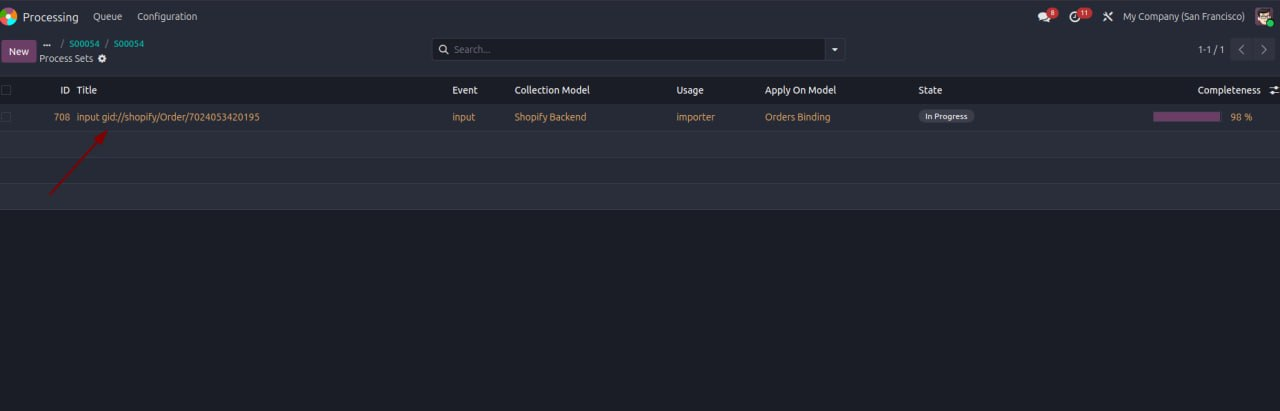
Understanding the Progress Percentage
The Progress field indicates how far the Process Set has advanced through its execution stages.
For example, a Process Set showing partial progress has not yet reached the end of its recorded workflow.
However, a progress percentage alone does not establish whether execution is successful.
A Process Set may have completed several stages before encountering an error.
Alternatively, a workflow may still be progressing through its remaining operations.
Progress measures advancement, not necessarily successful completion.
Understanding the Process Set State
The State field identifies the current execution condition of the Process Set.
This information helps users determine whether the workflow is ongoing, has encountered an error or is in another recorded state.
Progress and State should always be reviewed together.
For instance, if a Process Set shows significant progress but its State is Fail, the correct next step is to investigate the failed operation rather than assuming the workflow has almost succeeded.
Similarly, if Progress is incomplete and the State remains In Progress, users should examine whether the workflow is operating as expected.
The combination of these fields provides a more useful picture of operational status than either field alone.
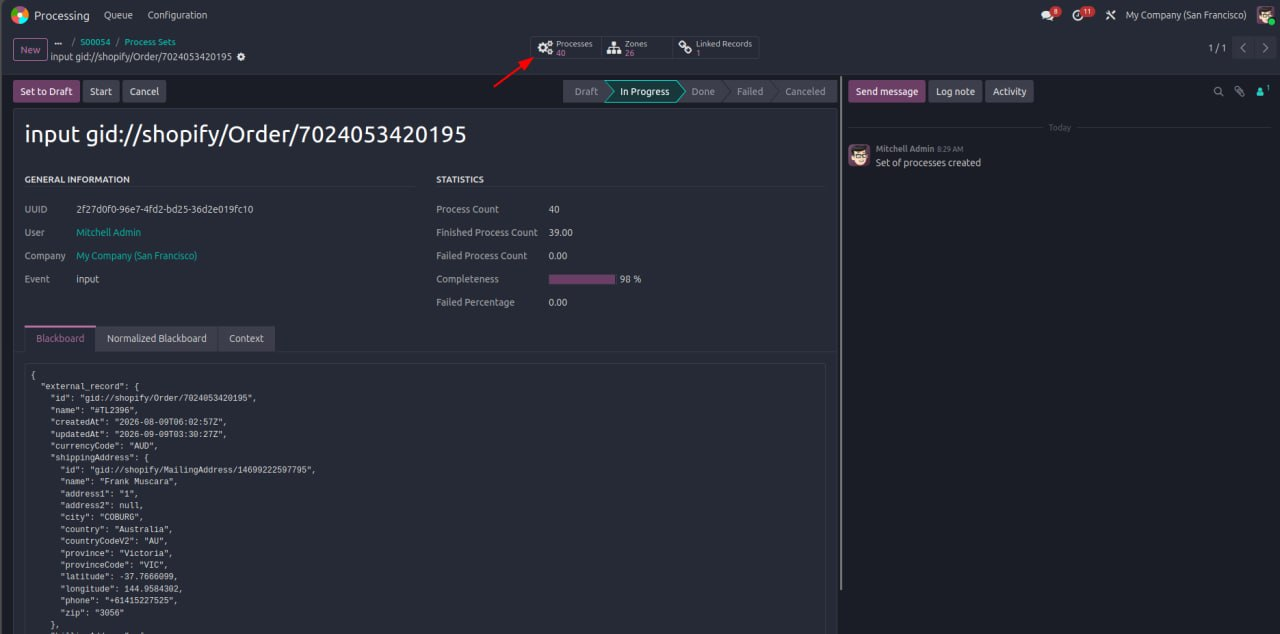
How to View and Group Processes by Component and State
For more detailed troubleshooting, open the individual processes associated with a Process Set.
Select Processes from the Process Set details.
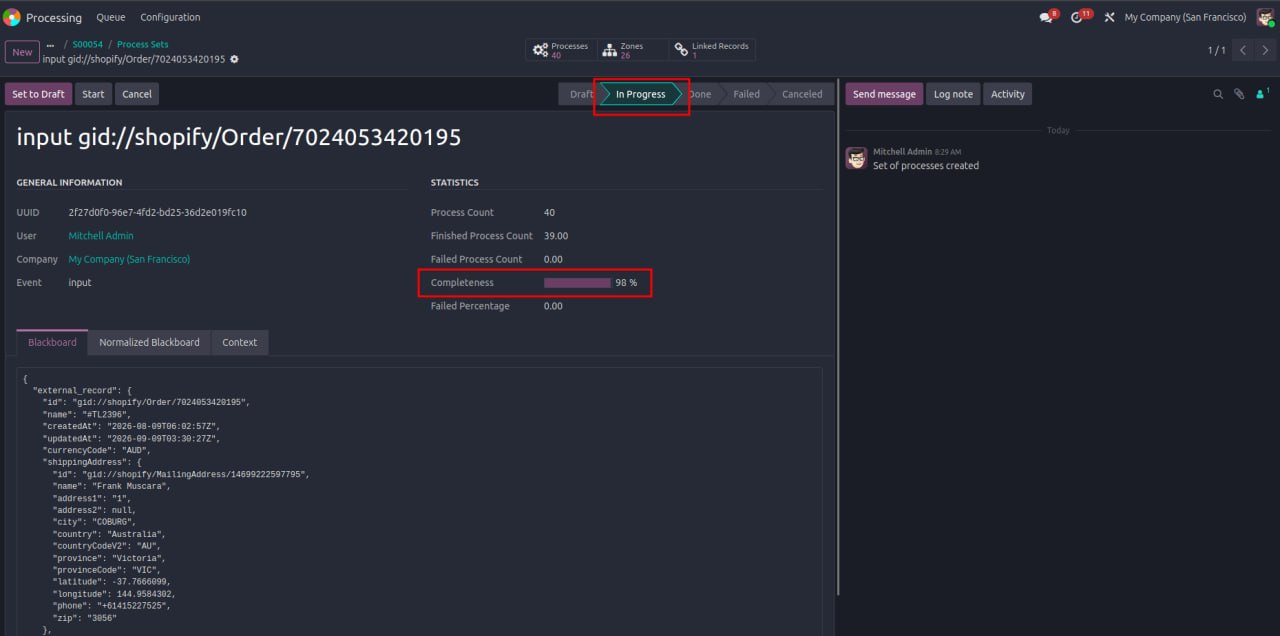
This displays the processes included in the selected workflow.
Default Grouping by Component
By default, processes are grouped according to their Component.
A Component-based view keeps processes associated with the same functional component together.
This makes it easier to review related operations without navigating an unorganised list.
For example, in a workflow containing several integration components, grouping can help users examine the processes belonging to each component separately.
This is particularly useful when multiple parts of a business integration are involved.
Additional Grouping by State
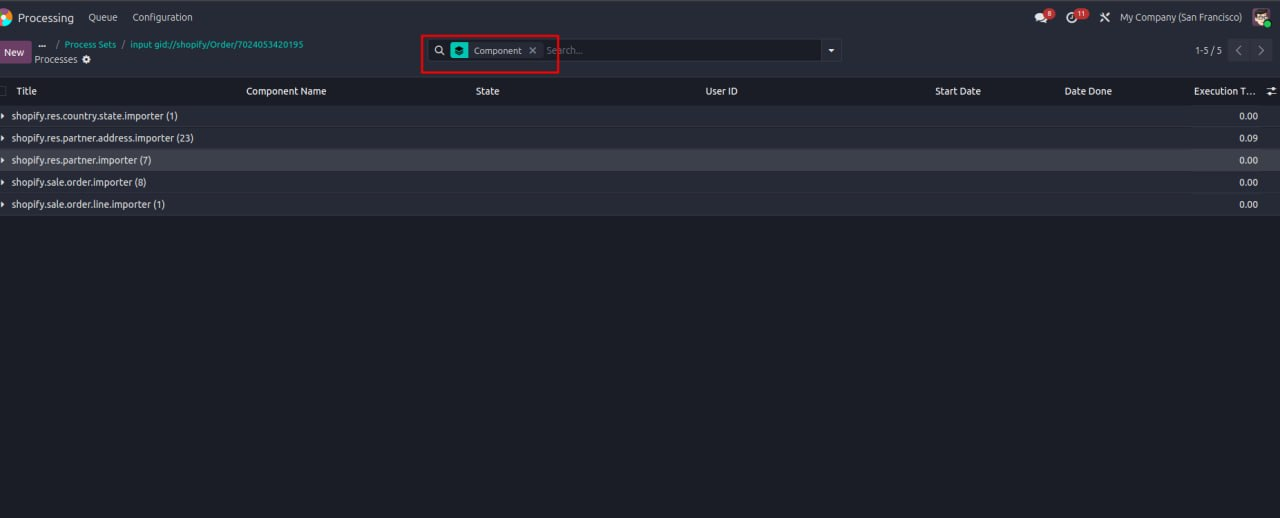
When further investigation is needed, users can also select State as a grouping criterion.
Processes can then be organised by both Component and State.
This offers a clearer view of which processes have completed, which are waiting and which require attention.
Using both grouping criteria helps users:
- Find failed processes more efficiently.
- Identify processes waiting for execution.
- Locate processes with unresolved dependencies.
- Review the execution state of related operations.
- Focus troubleshooting on the relevant component.
Grouping processes by Component and State provides a more structured approach to investigating complex workflows.
Understanding Odoo Process States: Done, Pending, Fail and Wait Dependency
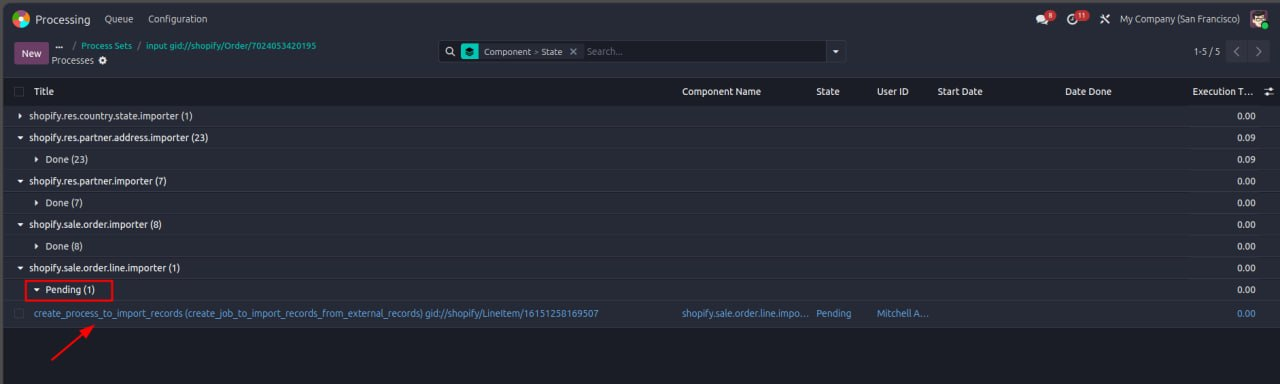
After accessing the Processes list, each individual process can be examined according to its State.
Understanding these states is essential for making safe and informed decisions.
1. Done: Process Completed Successfully
A process showing Done has completed its assigned operation successfully.
This indicates that the individual process has reached its completed state.
However, one completed process does not mean the entire Process Set has finished.
Other processes in the same workflow may still be pending, in progress or waiting for dependencies.
Always review the overall Process Set State before concluding that the complete operation has succeeded.
2. Pending: Process Waiting to Start or Execute
A process marked Pending has not yet completed its execution and is waiting for the relevant operation to begin or proceed.
A Pending status does not necessarily represent an error.
It may indicate that the process is awaiting the appropriate execution conditions.
Before considering an Action, determine whether the requirements for execution have been satisfied.
Do not automatically trigger a Pending process without understanding its position in the workflow.
3. Fail: Process Execution Failed
A process displaying Fail has encountered an error.
This state requires investigation before any further operation is performed.
Review the process information to determine the possible cause.
Depending on the implementation, issues may involve missing data, failed integration requests, unmet requirements or other execution problems.
These are possible troubleshooting categories, not confirmed causes for every failed process.
The appropriate resolution depends on the actual error and the workflow configuration.
Never assume that repeating a failed process will resolve the underlying problem.
4. Wait Dependency: Process Waiting for Another Operation
A process marked Wait Dependency depends on another process or required condition before it can proceed.
This is an important distinction when troubleshooting automated workflows.
A dependency may prevent a downstream process from executing even when that downstream process has no direct error.
For example, imagine a workflow where Process B depends on Process A.
If Process A has not completed the required operation, Process B may remain in Wait Dependency.
In this situation, attempting to execute Process B without examining Process A may not resolve the problem.
The correct approach is to inspect the dependency relationship and determine what is preventing the required condition from being satisfied.
Odoo Process Status Reference Table
| Process State | Meaning | What to Do |
| Done | The individual process completed successfully. | Confirm whether other processes remain unfinished. |
| Pending | The process is waiting to begin or execute. | Verify that the required execution conditions are met. |
| Fail | The process encountered an error. | Investigate the cause before attempting recovery. |
| Wait Dependency | The process is waiting for a required dependency. | Check the related process or dependency condition first. |
Recognising these states helps users distinguish genuine failures from workflows that are legitimately waiting.
How to Safely Execute Actions on Odoo Processes
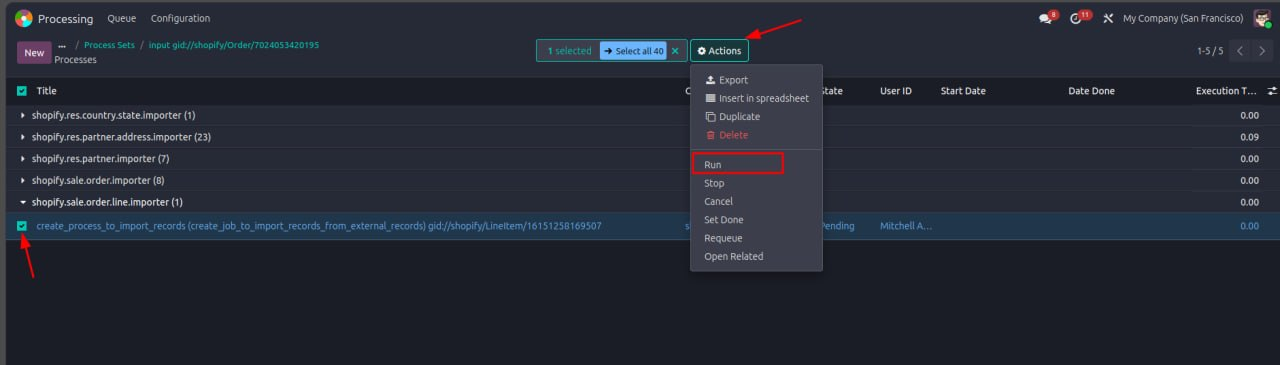
The Action option allows users to perform available operations on a selected process.
However, choosing an Action without reviewing the process state can create unnecessary operational risk.
Before executing any action, identify the process and confirm whether the intended operation is appropriate.
Step 1: Select the Relevant Process
Open the Processes list and locate the process requiring attention.
Review its current State and confirm that you have selected the correct record.
Step 2: Investigate Its Current Condition
Evaluate the process based on its recorded State.
If the process is Fail:
Identify and investigate the error before considering another operation.
If the process is Wait Dependency:
Review the required dependency and establish whether the conditions for execution have been satisfied.
If the process is Pending:
Determine whether the process is correctly waiting or whether further investigation is required.
If the process is Done:
Confirm whether any additional action is actually necessary.
Step 3: Open the Action Menu
Once the relevant checks have been completed, select the process and open the Action menu.
Review the available operations.
The exact actions depend on the system configuration and the selected process.
Step 4: Execute Only the Appropriate Action
Choose an operation only after determining that it is compatible with the current process state.
For workflows involving external platforms, additional care is advisable because an action may affect data or transactions outside Odoo.
If the cause of the issue remains unclear, escalate the case to the appropriate technical support team rather than attempting an uncertain recovery.
Step 5: Verify the Result
After an authorised corrective action has been executed, return to the Process Set and review its updated status.
Check the relevant individual processes to confirm whether the intended issue has been resolved.
Do not assume an action succeeded simply because it was executed.
The correct troubleshooting sequence is: Review → Investigate → Decide → Act → Verify.
Odoo Process Set Troubleshooting: A Practical Example
Consider an Australian eCommerce business using Odoo to manage orders from an external marketplace.
An order has entered the connected workflow, but the expected processing has not been completed.
The support team opens the Log section and finds that the associated Process Set is marked Fail.
Rather than immediately triggering an Action, the team follows a structured investigation.
Phase 1: Review the Order Log
The team locates the correct order record and confirms that the associated Process Set requires attention.
Phase 2: Open the Process Set
Using View All Process Set, the team opens the corresponding Process Set and checks its Progress and State.
The State indicates that the workflow has encountered an error.
Phase 3: Investigate Individual Processes
The team opens Processes and groups the records by Component and State.
For this illustrative scenario, the processes have the following statuses:
| Example Process | State |
| Receive Order Data | Done |
| Validate Order Information | Fail |
| Prepare Downstream Operation | Wait Dependency |
These example process names illustrate a possible workflow; they are not fixed interface labels.
The investigation suggests that the downstream operation cannot continue because an earlier validation process failed.
Phase 4: Identify the Cause
The team examines the failed validation process and determines what needs to be corrected.
The team does not attempt to bypass the dependency.
Phase 5: Apply an Appropriate Resolution
Once the issue has been understood and the appropriate corrective operation has been confirmed, an authorised user can apply the relevant action if one is available.
The team then rechecks the affected processes and the overall Process Set.
This approach demonstrates why understanding Odoo process dependencies is important.
The visible symptom may be an unfinished order, while the underlying issue is associated with an earlier process.
Best Practices for Odoo Log Monitoring and Process Management
A reliable monitoring approach should combine technical investigation with clear operational procedures.
Review Logs Before Making Changes
Always begin with the order Log and its associated execution information.
Avoid relying on assumptions about what should have happened.
Distinguish Waiting Processes From Failed Processes
Pending and Wait Dependency should not automatically be treated as failures.
Each state has its own meaning and requires an appropriate response.
Use Component and State Grouping
Grouping processes makes it easier to investigate related operations and identify the processes that require further attention.
Investigate Dependencies Before Triggering Actions
When a process depends on another operation, examine the dependency first.
Attempting to bypass workflow dependencies can create additional complications.
Avoid Unnecessary Manual Intervention
A Process Set marked In Progress may still be operating correctly.
Allow ongoing operations to proceed unless investigation identifies a genuine issue requiring intervention.
Verify Results After Corrective Actions
After applying an authorised change, return to the Process Set and review its updated State and Progress.
Verify the individual process outcomes rather than assuming the entire workflow has recovered.
Escalate Unresolved Errors
If the available information does not establish the cause of a failure, involve the appropriate system administrator, integration specialist or Odoo support team.
When escalating, provide the relevant order reference, Process Set, individual process states and available error details.
This information can make the investigation more efficient.
How MoonSun Supports Odoo Integration and Troubleshooting in Australia
For businesses running Odoo alongside marketplaces, third-party logistics providers and external business applications, integration reliability is essential.
Complex operations may involve several connected components, and failures can be difficult to investigate without an understanding of the overall workflow.
As an official Odoo Partner in Australia, MoonSun provides Odoo integration, implementation and support services to help businesses manage connected operations more effectively.
Our integration capabilities include solutions for connecting Odoo with marketplaces, logistics providers and external systems.
Through our Integration Toolbox, we help Australian businesses connect their sales, inventory, order management and fulfilment workflows.
Our services include:
Odoo Integration Development
Connecting Odoo with external business platforms and designing appropriate data exchange workflows.
Integration Troubleshooting
Investigating integration behaviour, processing failures and technical issues affecting connected operations.
Workflow Analysis
Reviewing business processes to identify operational requirements, dependencies and opportunities for improvement.
Odoo Support and Maintenance
Providing assistance with Odoo systems, connected applications and ongoing operational requirements.
System Optimisation
Helping businesses improve how their Odoo applications and integrations work together.
Learn more about MoonSun Integration Toolbox and explore how connected ERP workflows can support your business operations.
Frequently Asked Questions About Odoo Process Set Logs
What are Odoo Process Set Logs?
Odoo Process Set Logs provide information about order-related execution activity in systems using Process Set functionality. They help users review workflow states, monitor progress and investigate processing issues.
What does Fail mean in an Odoo Process Set?
Fail indicates that the Process Set encountered an execution error. Users should open the associated processes, identify the failed operation and investigate the cause before attempting corrective action.
What does In Progress mean in Odoo Process Set management?
In Progress indicates that the Process Set has not yet reached a completed state. It may still be processing normally. Users should review Progress and individual process states before deciding whether intervention is necessary.
What is the difference between Pending and Wait Dependency?
Pending indicates that a process is waiting to begin or execute. Wait Dependency specifically indicates that execution depends on another process or required condition. Understanding this distinction helps users determine what to investigate next.
How can I find failed processes within a Process Set?
Open the relevant Process Set, select Processes and review the individual process states. Grouping records by Component and State can make failed processes easier to locate.
Should I execute an Action when a process shows Fail?
Not immediately. First, investigate the failed process and identify the cause. Execute an Action only when the operation is appropriate for the current process state and the potential effects are understood.
Can a Process Set show progress even when it has failed?
Yes. A Process Set may have progressed through earlier operations before a later process encountered an error. Progress and State must be evaluated together to understand its actual condition.
How can MoonSun help with Odoo integration errors?
MoonSun provides Odoo integration and support services for Australian businesses. Our team can assist with reviewing connected workflows, investigating integration issues and assessing appropriate technical solutions.
Conclusion: Better Odoo Process Management Starts With Better Visibility
Effective Odoo Process Set management is not about executing actions as quickly as possible. It is about understanding the workflow, identifying the actual problem and selecting the appropriate response.
By reviewing order Logs, monitoring Process Set Progress and State, examining individual processes and understanding dependencies, businesses can approach troubleshooting more systematically.
Remember the essential workflow:
Check the Log → Open the Process Set → Review Progress and State → Investigate Processes → Verify Dependencies → Execute an Appropriate Action → Confirm the Result.
Whether a Process Set is marked Fail, In Progress or contains processes waiting on dependencies, the first priority should always be accurate investigation.
For Australian organisations relying on connected ERP systems, consistent monitoring and carefully managed integrations are important foundations for reliable business operations.
Need Expert Help With Odoo Integration and Process Management?
Don't let unresolved integration errors disrupt your business operations.
Whether you are experiencing failed order processes, integration issues or complex workflow dependencies, MoonSun can help you investigate your Odoo environment and identify practical solutions.
As an Odoo Partner in Australia, we support businesses with integration development, system troubleshooting and ongoing technical assistance.
Get Expert Odoo Support From MoonSun
Contact MoonSun Today to discuss your Odoo integration challenges and discover how we can help your business operate more efficiently.